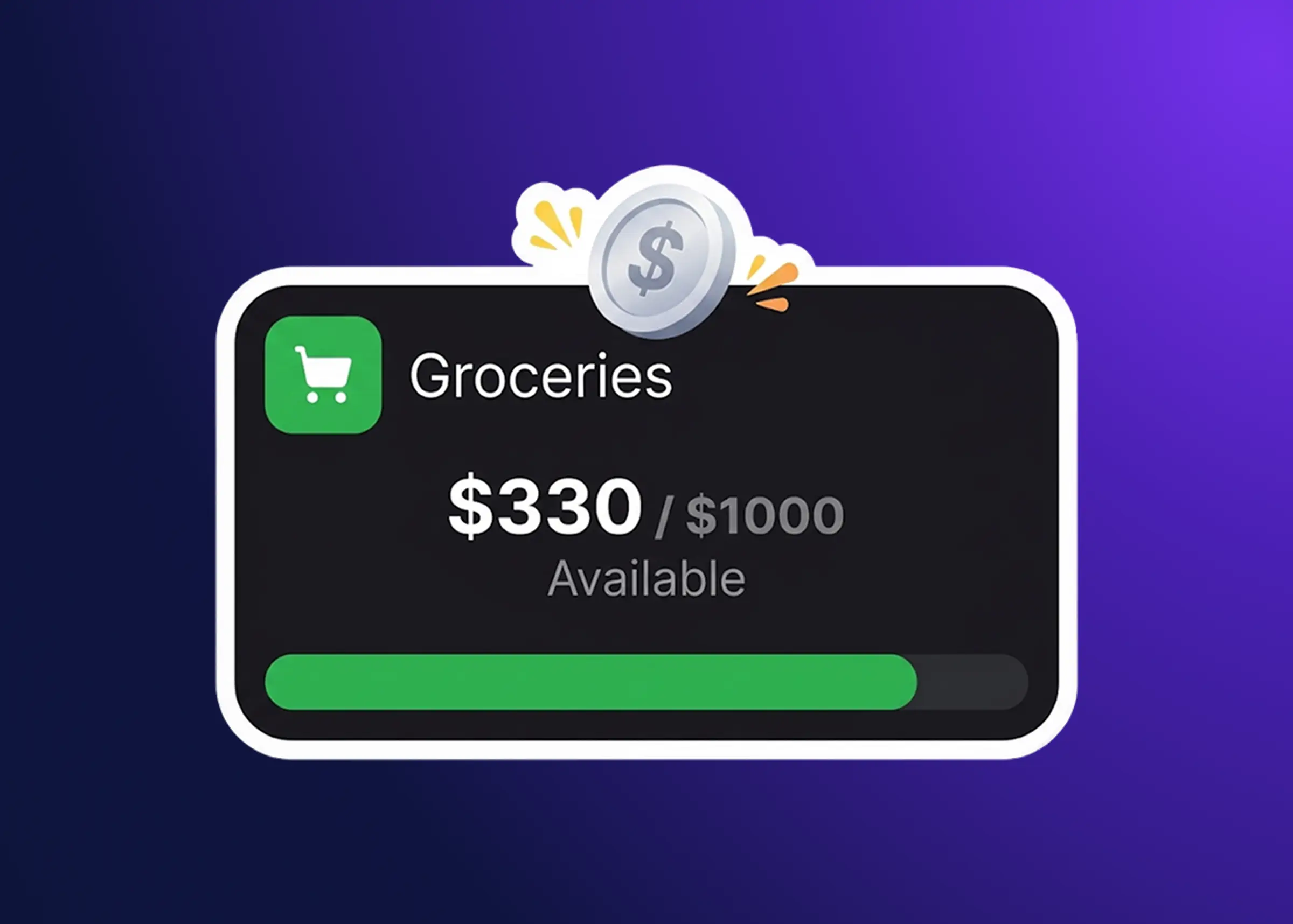

Your safe-to-spend number is how much you can spend today without breaking an upcoming bill, subscription, or savings goal. It answers the question most budgets dodge: how much can I actually afford right now, after everything I have already promised to pay?
Origins and Philosophy of Safe-to-Spend Budgeting
The method started as a feature at Simple Bank, an online bank that has since shut down. Its insight was simple: your true available balance lives in the future, not the past. Most budgeting apps show what you already spent, while a safe-to-spend system shows what survives after every payment you have promised to make.
Hands-on budgeting keeps you closer to your money. You see the numbers, update them yourself, and build real awareness of where each dollar goes. That contact produces better decisions than an automated tool that logs transactions after the fact, because by the time it shows you a purchase the money is already spent, and a manual system forces the decision before that happens.
Mint takes the opposite route. It links to your credit cards, checking, and savings, pulls in transactions automatically, and hands you built-in budgeting tools. The convenience is real, but it keeps you looking backward at what already happened instead of forward at what is coming.
Building Your Safe-to-Spend Spreadsheet in Excel
The framework runs fine as a manual spreadsheet because it never needs a live bank connection. You type your planned operations by hand: salary deposits, subscriptions, one-off expenses, all sorted into categories. From there the sheet builds the two sections that do the real work, Milestone Expenses and Allocation Buckets.
The template carries both a monthly and a biweekly contribution column so it fits your actual paycheck. If you are paid every two weeks you fill the biweekly column, and if you are paid monthly you use the monthly one. The sheet bends to your schedule rather than forcing you onto someone else’s.
Inserting and Selecting Rows
A little spreadsheet mechanics saves you from breaking formulas later. To select a whole row on Mac or Windows, click the row number in the left margin or press Shift+Space, and the row turns blue.
With the row selected, press Ctrl+Plus on Windows or Command+Plus on Mac to insert a fresh row above it. Formulas in the rows below adjust their own references, so a new expense category never quietly corrupts a calculation. If you need to drop a row, select it and press Ctrl+Minus or Command+Minus, and the formulas shift to match.
Tracking Milestone Expenses
Milestone expenses are the predictable, known-cost items on your calendar. Car insurance that renews in June, car tabs due in March, the annual Costco membership. You know they are coming, roughly when, and roughly what they will cost.
Each item takes an annual cost. Enter $1,500 for car insurance and the sheet handles the rest: $1,500 across 12 months is $125 a month, and across 26 biweekly periods it works out to $57.69 per paycheck.
You feed those contributions into the milestone balances as paychecks land, and Paste Special keeps that quick without wrecking any formulas. After payday, copy the amounts from the biweekly or monthly column, then select the balance cells for the milestones you want to top up. Right-click, choose Paste Special, tick both Values and Add, and click OK. The numbers add to your existing balances instead of overwriting them, so the formulas hold and the balances climb with every allocation.
Milestone status runs on the calendar, not the balance. Once the current date passes a milestone’s tracked end date, its status flips to done whether or not you actually saved enough. On January 2, a Dec 31 car tabs milestone marks itself done on its own.
Managing Allocation Buckets
Allocation buckets cover spending you know is coming but cannot pin to a date. A home renovation, new furniture, a dental crown, a travel fund. They sit outside the milestone framework because they do not recur every year on a fixed day.
Buckets have no start or end date, and unspent money rolls forward each pay period. Put $200 into Home this month, spend $50, and $150 carries over. It keeps stacking until the day you actually need it.
That roll-over is exactly why buckets fit poorly for daily costs like groceries, gas, or coffee, where you would be editing the sheet every few hours, shaving $50 here and $30 there. A budget should sharpen your decisions, not turn into a second job. Buckets earn their keep when you touch them once in a while, after a bigger purchase.
Connecting the Pieces to Your Safe-to-Spend Number
Both sections total their balances at the foot of each column, and those totals flow into the final calculation. The formula underneath is plain arithmetic:
Safe to spend = available balance
  + recurring income this month
  - milestone expenses this month
  - allocation bucket total
  - monthly subscriptions
  - one-off expenses planned this month
Your exact layout shifts the details, but the logic holds: start with what sits in your accounts, subtract everything you have already allocated or promised to pay, and the remainder is genuinely safe to spend. That is how to calculate safe to spend by hand. The price is discipline, because the sheet only stays honest if you update it every paycheck, enter new expenses as they land, and track spending against your buckets yourself. For some people that friction is the point, since it keeps them paying attention.
Getting the same number without the payday ritual
The spreadsheet works, but it runs on your attention. Every payday you are inserting rows, running Paste Special, and re-reading a static number that only reflects the last time you sat down with it. Add a second account or a second currency and you are doing conversion math by hand on top of all that.
Picture the same number keeping itself current instead. It recalculates as your balances move and dates roll past, so what remains after your committed obligations is visible the moment you look, across every account and currency you track, with no manual conversion in the way.
Dzing does that job. It computes your safe-to-spend number from a transparent formula with a full breakdown, working from planned operations you enter once: recurring salary, subscriptions, bills, and one-off expenses. It holds multiple accounts and currencies, folds your budgets and savings goals into the same math, and keeps a spending history you can review. Every entry stays manual by design, so Dzing never reaches your bank login or moves real money. You own the inputs and you can audit the formula, which is the trade-off for doing the entry yourself.